Docs
Position Records
Review & Playbooks
Quickstart
What you will complete in 10 minutes
You will open LucrJournal, sign in, and check your access. Then you will create one account, add one symbol, and save your first position.
You only need a real or practice instrument. You do not need to organize your entire trading system on day one.
1. Open the journal
Run the LucrJournal command Open journal in Obsidian.
The main interface does not show trading records the first time you open it. Without sign-in credentials, you will see:
- The title
Sign in - The message
Sign in to verify your LucrJournal access. - The button
Continue with LucrTrade
2. Sign in and check access
Sign-in is one authorization round trip between your browser and Obsidian.
- Select
Continue with LucrTrade. - The plugin opens a new browser window. Follow the page to authorize LucrTrade.
- Return to Obsidian. The interface shows
Checking LucrJournal access. - When the check passes, you will see
Signed in to LucrTrade.and then enter LucrJournal.
Signed in, but no access yet
A successful sign-in does not mean your account already includes LucrJournal. If access is missing, the plugin keeps your sign-in credentials and shows Upgrade to LucrJournal.
- Select
View plansand complete the upgrade in your browser. - Return to Obsidian.
- Select
I've upgraded — check again.
The plugin checks again with your existing credentials. Once the check passes, all LucrJournal views become available immediately. You do not need to authorize in the browser again.
When are you signed out?
- You select
Log outunderAccountin the plugin settings. - The server confirms that the sign-in was revoked, the account was disabled, or the credentials are invalid.
The plugin checks once after startup and then once every hour. It clears your local sign-in and shows Signed out of LucrTrade. only when the credentials are confirmed to be invalid. A network outage or temporary service error will not sign you out.
3. Create your first account
An account represents the trading source for its positions. After sign-in, if the current vault has no account, LucrJournal shows New Account instead of Overview.
- Choose or enter a platform under
Platform. - Enter an easy-to-recognize account name under
Display Name. If you leave it empty, the platform name is used by default. - Select
Create.
4. Add your first symbol
A symbol is a tradable instrument under an account. After creating the account, select the gear icon on the right side of the header. Open Symbols, then select Add Symbol.
- Under
Account, choose the account you just created. - Under
Symbol, enter a code such asBTCUSDT,BTCUSDT.P,ES, orXAUUSD. - Select
Add Symbol.
5. Save your first position
A position records one specific trade. After creating an account and a symbol:
- Select
New Position. - Under
Create New Position, choose anAccount. - Under
Symbol, choose the symbol you just added. - Under
Side, chooseLONGorSHORT. - Select
Save Position.
The new position is saved with the Open status and the open time in your current timezone. The plugin then opens the position details.
Select Positions to find the record in the list.
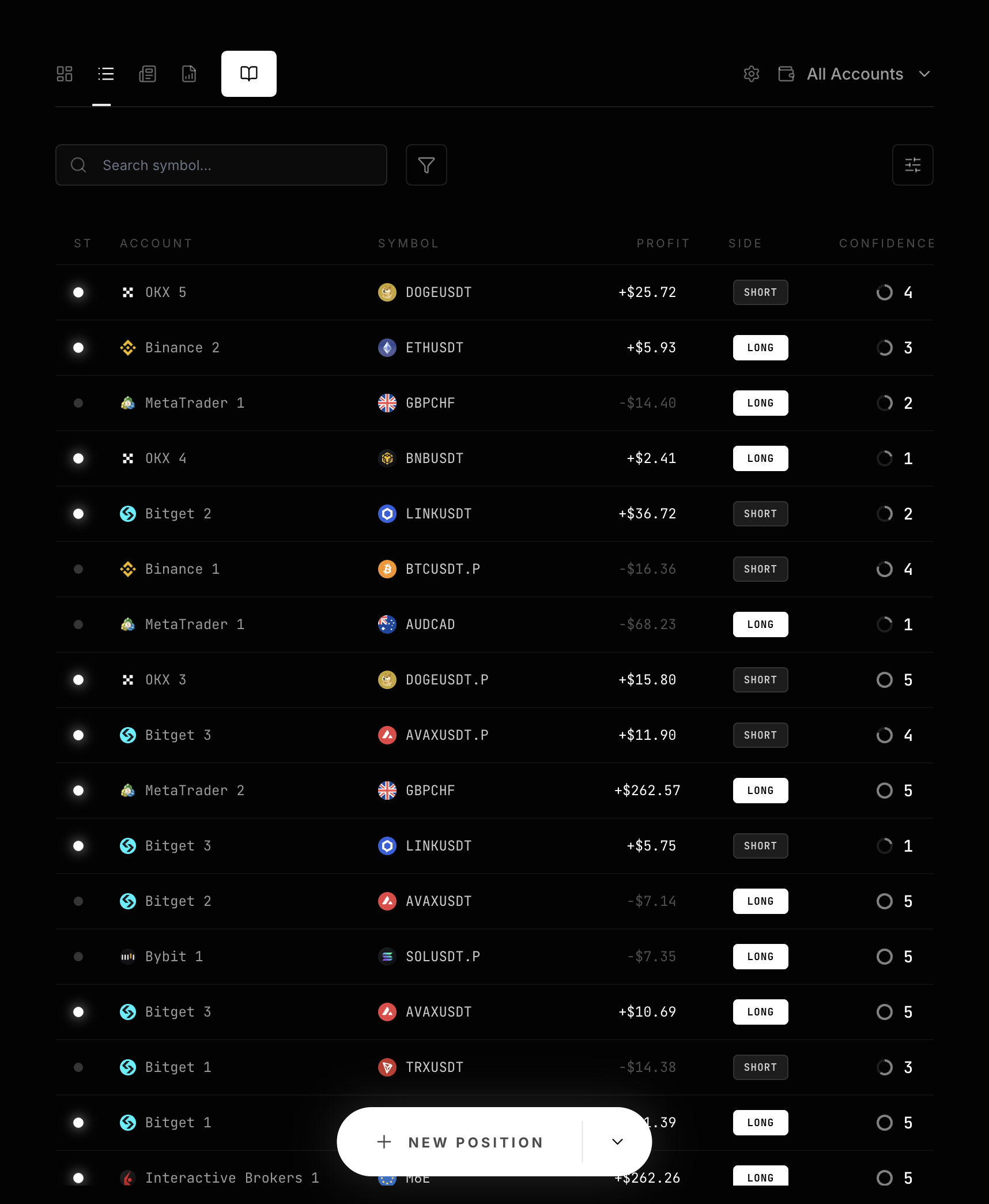
Completion checklist
- You can enter LucrJournal through
Open journal. - You have seen
Signed in to LucrTrade.or completed the access recheck. - You have created an account.
- You have created a symbol.
- You have saved your first position with
Save Position. - You can find it again under
Positions.
The plugin saves this record as a Markdown file such as LucrJournal/positions/POS-00001.md. Later positions continue with five-digit sequential numbers.
Next step
Read Accounts and Symbols first and verify the symbol’s Type, Fee, and Contract Unit. Then continue to Record Your First Position and complete your first full record.