Docs
Position Records
Review & Playbooks
Dashboard Daily Review
What the dashboard is
The dashboard is the starting point for review in LucrJournal. It keeps summaries, positions, context, and playbooks in one navigation bar. Narrow the sample first, then open a specific position. You do not need to search through folders one file at a time.
| Area | What to read first | When to open it |
|---|---|---|
Overview |
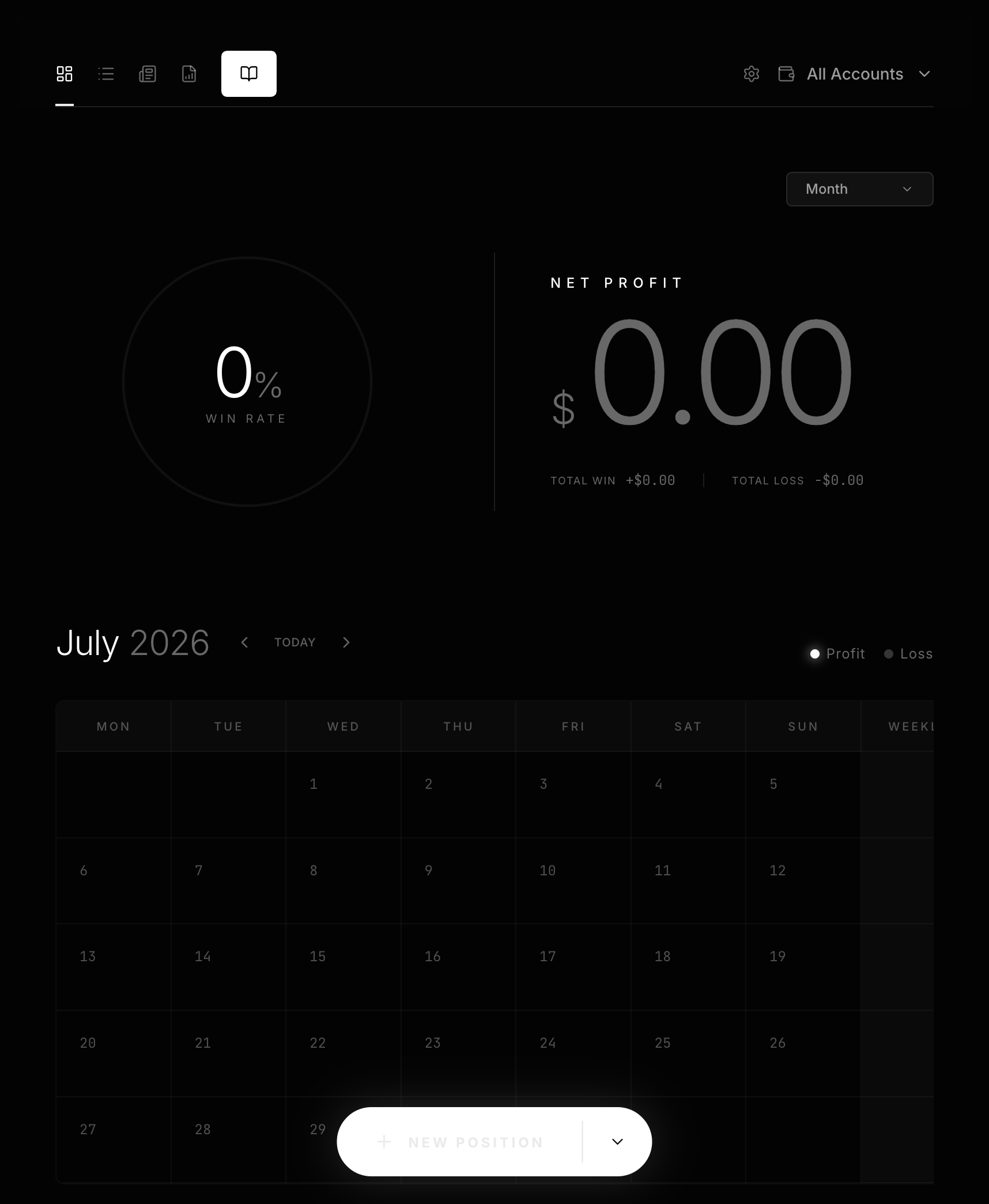
Win Rate, Net Profit, and daily results on the calendar |
Start by choosing the period to inspect. |
Positions |
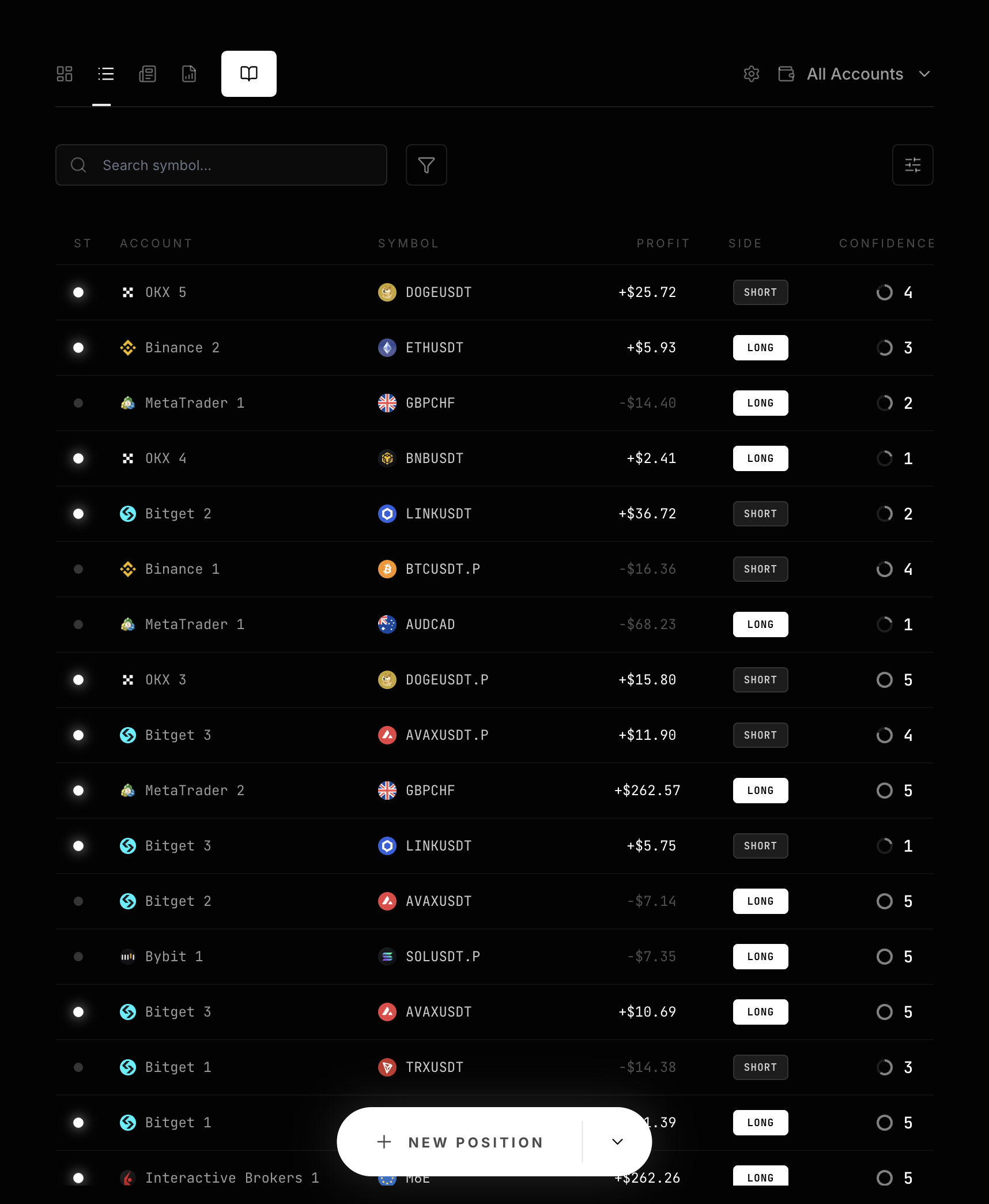
Status, Symbol, Account, Profit, and Opened At for each trade | Find the specific trade to review. |
News |
External events and their linked positions | Check whether an event repeatedly affected trades. |
Analysis |
Key Level, Confluence, and Market Analysis |
Compare positions with the same background. |
Playbook |
Samples and performance for one setup | Turn repeated conclusions into rules. |
Use All Accounts at the right side of the header to choose the account scope. Keep all accounts selected for your first review. Narrow it only when you want to compare accounts.
Narrow the timeframe from Overview
Overview provides Week, Month, Quarter, Year, and All Time. Match the range to your question. Use Week or Month for recent execution. Use Quarter, Year, or All Time when checking whether a setup still works over time.
The calendar shows trade results by date. Select a day and the dashboard opens Positions with only records whose opening date matches. This takes you from an unusual daily result to the trades behind it.
Find a specific trade in Positions
Search symbol... above the Positions table does not search only symbols. It matches the Account, Platform, and Symbol resolved for the current position.
- Search ignores surrounding spaces and letter case.
- An unquoted term matches a complete value or the start of a Unicode word. For example,
BTCmatches symbols that start with BTC. - A quoted term matches one continuous substring. For example,
"USDT"matches USDT in the middle of a name. - When you enter several terms, every term must match. Different terms may match Account, Platform, and Symbol separately.
Use the funnel icon to open Filter Positions. Search and every applied filter must all match.
| Filter | Positions it includes |
|---|---|
STATUS |
Open includes only open records. Win includes closed records with profit >= 0.01. Loss includes closed records with profit <= 0. |
SIDE |
Long or Short is an exact match. |
CONFIDENCE |
High (4-5), Medium (3), and Low (1-2) group the saved numeric value. |
ACCOUNT, SYMBOL |
Exact matches. Changing Account clears a Symbol that does not belong to that account. |
PLAYBOOK, NEWS, ANALYSIS |
Include only positions whose links Obsidian resolved to the selected file. |
After changing the filter draft, select Show Results to apply it. Selecting outside the filter panel discards that draft. Reset All restores the defaults. A search, filter, or sorting change returns the table to its first page.
How sorting and column layout work
Only sortable column headers change the row order. Text such as Account, Title, Tags, and Criteria uses the current language’s text order. Numbers such as Fee and Contract Unit use numeric order. Other sortable columns compare their cell values. When several sort comparisons are equal, the original row order remains stable.
Use Columns to hide or show columns. You cannot rearrange them. LucrJournal defines one fixed column order, and hiding removes a column from that order.
Visibility is saved separately for each table in plugin settings. It is not written to position or context Markdown. Positions hides only Analyses by default. News, Confluence, Key Level, and Market Analysis hide no columns by default. Each table restores its own hidden columns the next time you open it.
Cells you can edit directly
An editable cell writes to the source file. It is not a temporary table annotation.
| Table | Columns you can edit | Writeback target |
|---|---|---|
Positions |
Profit, Confidence, Opened At |
Write to profit, confidence, and opened_at in the position. Clearing Opened At deletes that field. |
Accounts in Settings |
Account Name |
Write to the account’s name. |
Symbols in Settings |
Type, Fee, Contract Unit |
Write to type, fee_value, and contract_unit. Contract Unit accepts only an empty value or a positive integer. |
News and Analysis |
Title, Tags, and Source for News |
Title renames the file and synchronizes its H1. Tags write to tags. Source writes to source. |
Criteria in the Confluence table is currently read-only. To change Playbook structure, use the structured screen under Playbook.
From a summary to one position
The shortest path is:
- Choose a timeframe or date in
Overview. - Open
Positions, then narrow the sample with search andFilter Positions. - Use the sortable
ProfitorOpened Atcolumn to inspect extreme results or recent trades first. - Select a row to open that trade’s Position Details.
- Review
Execution Details,Timing,Risk & Reward,Notes, and linked context.
You can also return to a filtered Positions table from Positions on a News or Analysis entry, or from Trades in Playbook Details. Continue with Review Workflow to turn this path into a complete review.