Docs
Position Records
Review & Playbooks
Position Details
What Position details is
Position details is the workspace for one trade. The header always shows the symbol, side, symbol type, ID, and account. The rest of the page keeps market data, evidence, execution facts, derived results, and review content together.
Side is read-only information fixed during creation. The account is derived from the current linked symbol. Select the ID to Open source file in new tab.
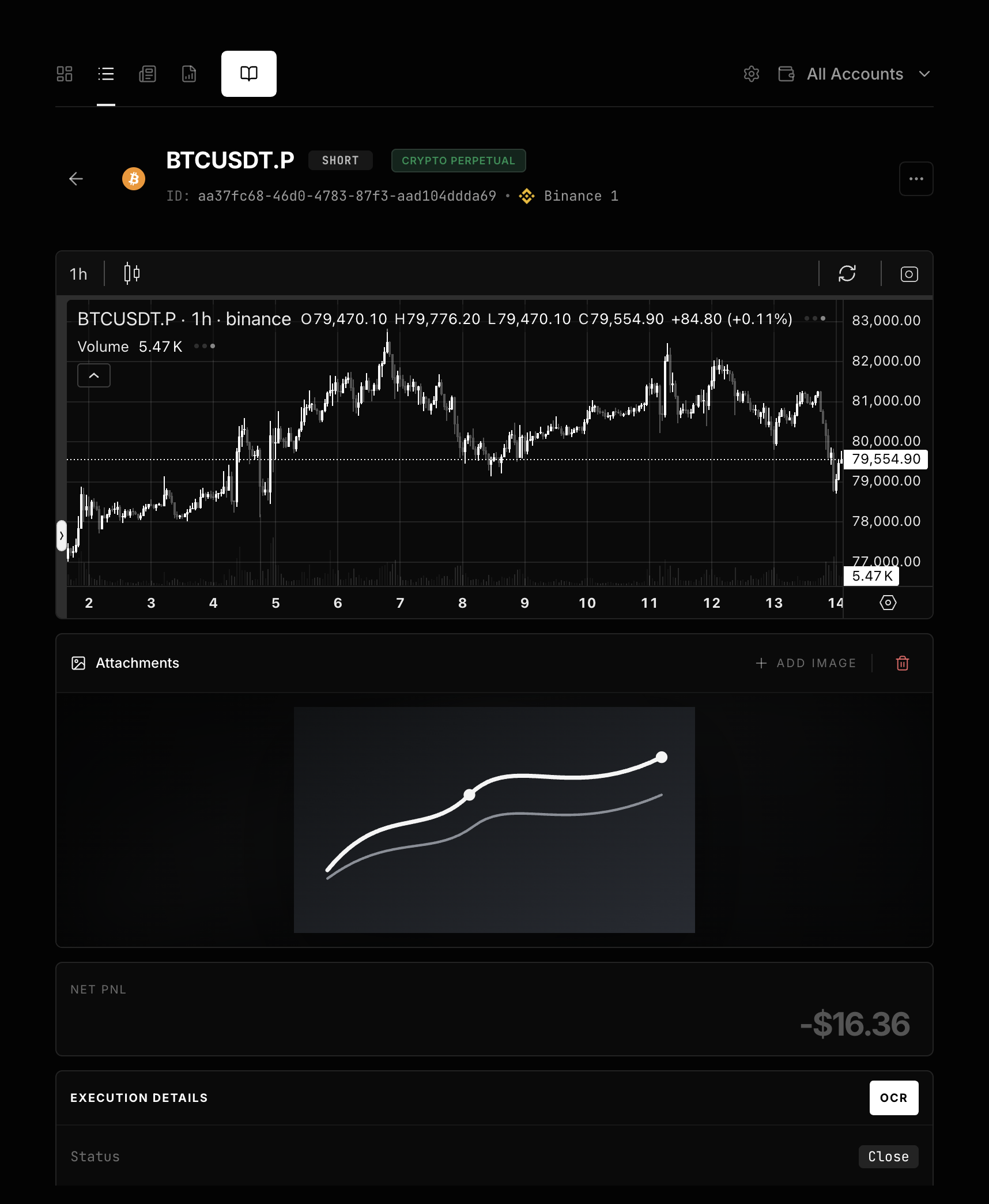
Areas on the page
| Area | What it displays and handles |
|---|---|
Chart |
Market data for the current symbol, with entry and exit markers. |
Attachments |
Trade screenshots and other image evidence. |
Net PnL |
The current derived or manually entered trade result. |
Execution Details |
Status, Entry Price, Exit Price, the size field, and Fee. |
Timing |
Opened At, Closed At, and a derived Duration when available. |
Risk & Reward |
Target Price, Stop Loss, Confidence, Risk, Planned R:R, and Real R:R. |
Notes and context tabs |
Raw notes, News, Key Level, Confluence, Market Analysis, and Playbook content. |
On a narrow pane, these areas stack vertically. Their content and calculation rules stay the same.
Complete the execution facts
Execution facts are the prices, size, and times that actually occurred. Select a value to edit it.
| Field | What to enter | Limits and effects |
|---|---|---|
Status |
Switch between Open and Close. |
Entering a finite Exit Price also sets Close, but does not fill Closed At. |
Entry Price |
Enter the entry price used by formulas. | The system has one entry price. It does not calculate an average entry price. |
Exit Price |
Enter the actual exit price after closing. | Clearing Exit Price does not reopen the position automatically. |
Amount |
For crypto, enter a USD or Native amount. |
Only a positive notional value and entry price produce a valid calculation quantity. |
Contract |
For futures, enter the number of contracts. | It must be an integer above 0. |
Lots |
For CFD, enter the number of lots. | It must be from 0.01 through 20. |
Fee |
Enter the absolute fee for this position. | When the symbol has a valid fee model, related size changes may derive it again. |
Opened At, Closed At |
Enter the actual times with timezone information. | Both are needed for a complete Duration. |
Target Price, Stop Loss |
Enter the planned prices. | LONG requires Target Price above Entry Price and Entry Price above Stop Loss. SHORT reverses that order. |
Confidence |
Use an integer from 1 through 5 for your subjective score. | It supports review filters and does not enter profit formulas. |
Risk, Planned R:R, and Real R:R are read-only derived values. You can edit Net PnL manually, but a later change to a related source field may overwrite that manual result.
Understand the derived values
A derived value is calculated and written from the current source fields. In the formulas below, “quantity” means the effective quantity from Notional Value ÷ Entry Price.
| Result | Calculation rule |
|---|---|
Net PnL |
(Exit Price - Entry Price) × direction × quantity - Fee. Direction is +1 for LONG and -1 for SHORT. The absolute Fee is subtracted once. |
Risk |
(Entry Price - Stop Loss) × direction × quantity. The result must be above 0. Fee is excluded. |
Planned R:R |
Directional reward from Target Price to Entry Price ÷ recalculated Risk. It ignores saved or manually entered Risk and excludes Fee. |
Real R:R |
Directional move from Exit Price to Entry Price ÷ recalculated Risk. It ignores saved Net PnL and Risk and excludes Fee. A loss remains negative. |
Every formula uses the single Entry Price. LucrJournal has no average-entry model for partial fills.
For example, a LONG position has an Entry Price of 100, Notional Value of 1,000, Stop Loss of 95, Target Price of 110, Exit Price of 108, and Fee of 2:
- Quantity is 10.
Net PnLis 78. The fee is subtracted once.Riskis 50.Planned R:Ris 2 andReal R:Ris 1.6. Neither includes the fee.
Write Notes and link context
Notes is the fixed starting point for the position body. Record the trade thesis, execution mistakes, and review conclusion first. Then use the plus button on the right side of the content area to add News, Key Level, Confluence, or Market Analysis tabs.
For each context entry, you can choose a saved file or create a new one. Removing a linked block removes it only from the current position body. It does not delete the original linked file. Use Playbook to link the setup and its criteria. See Playbooks and Criteria for details.
Next step
Continue with Charts, Attachments, and OCR to store screenshots, understand chart sources, and use OCR safely.