Docs
Position Records
Review & Playbooks
Install LucrJournal
1. Install Obsidian and create a vault
LucrJournal requires Obsidian 1.11.4 or later. Install Obsidian from the official download page.
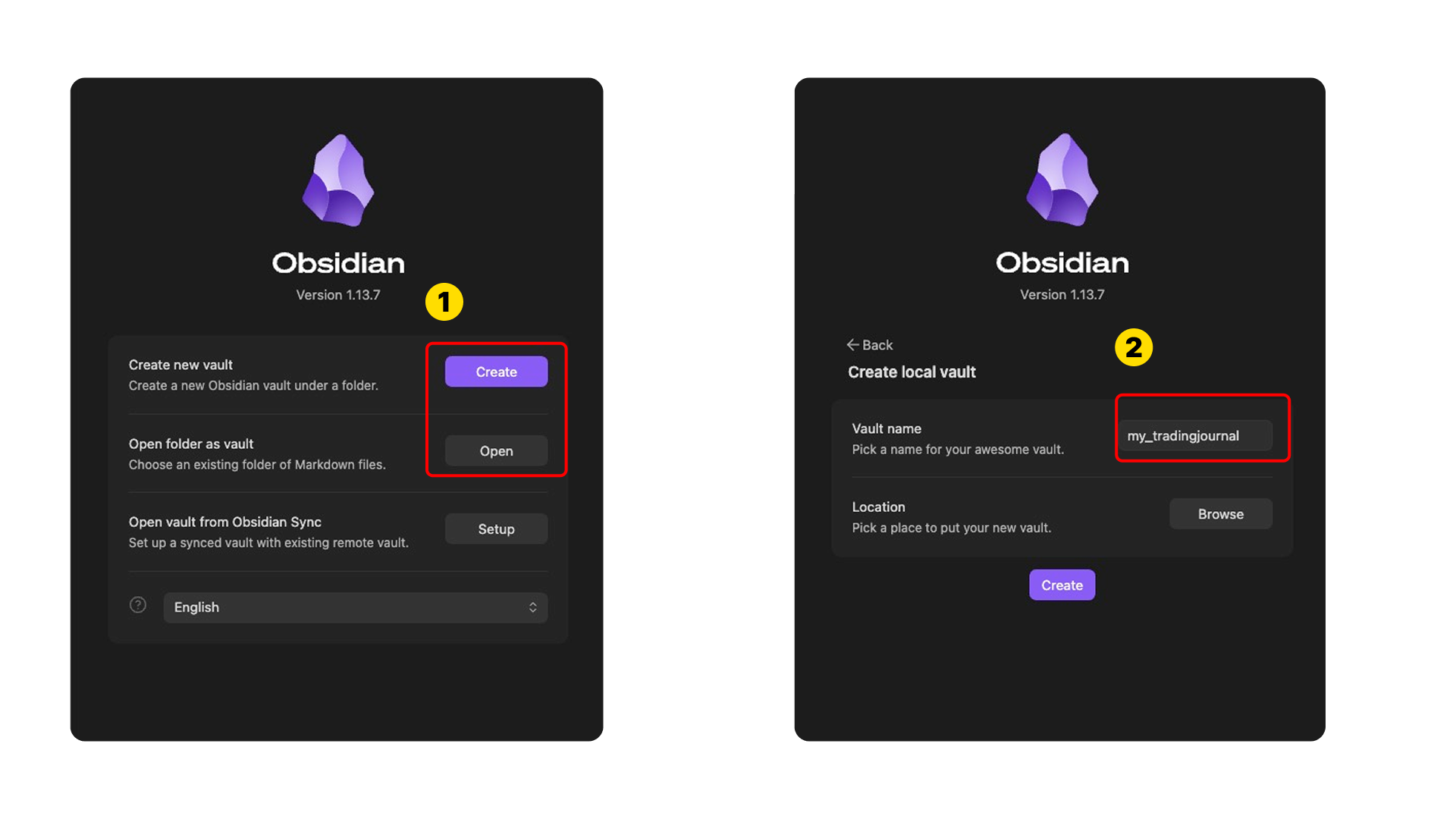
The first time you open Obsidian, create a vault. If you already have a folder of Markdown files, you can open it as a vault instead. Give a new vault a name and location, then create it.
2. Open the plugin browser
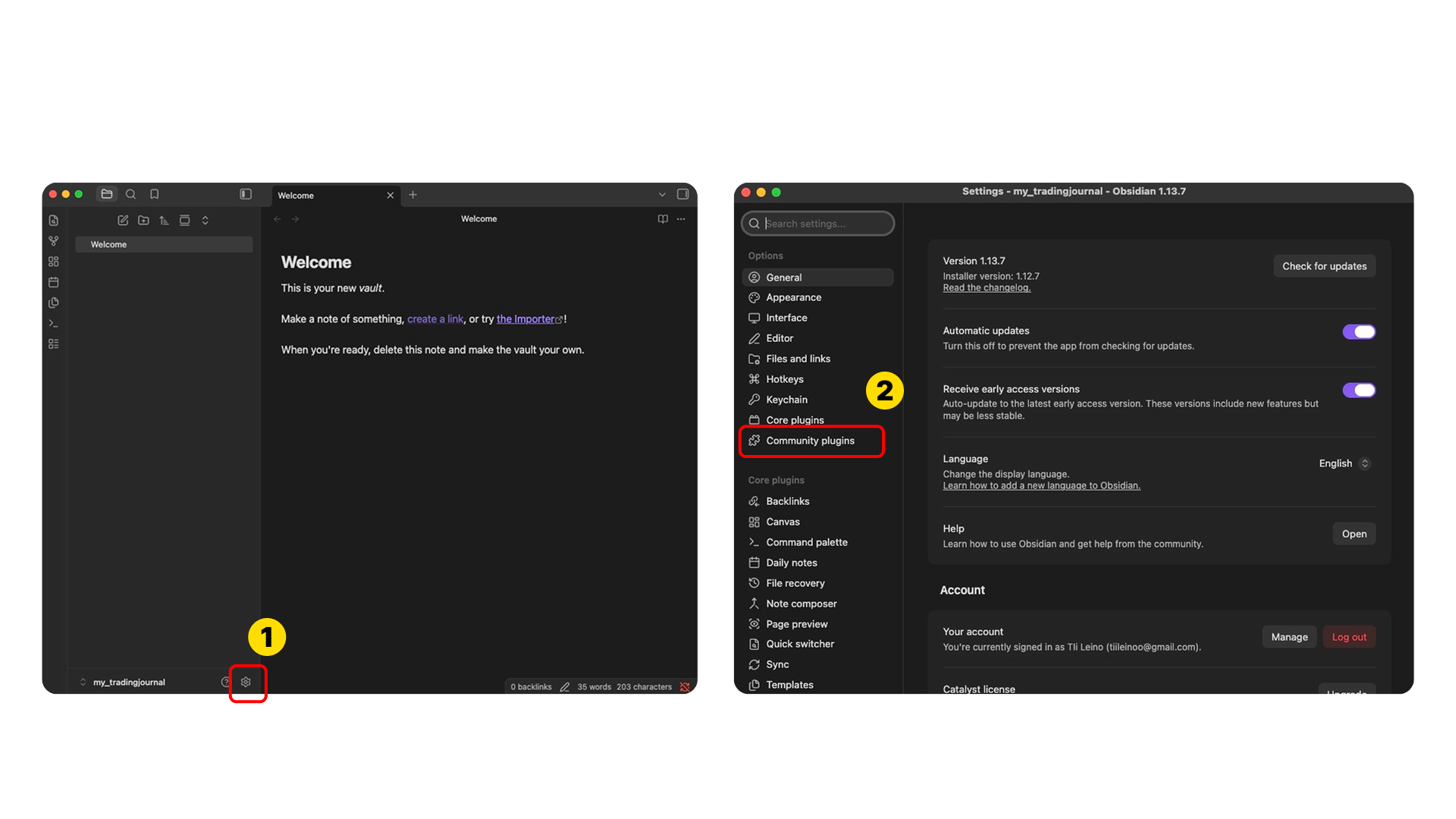
After entering a vault, select the gear icon in the lower-left corner to open Obsidian settings. Then use the third-party plugin area in the left sidebar to reach the plugin management page.
3. Allow third-party plugins and browse
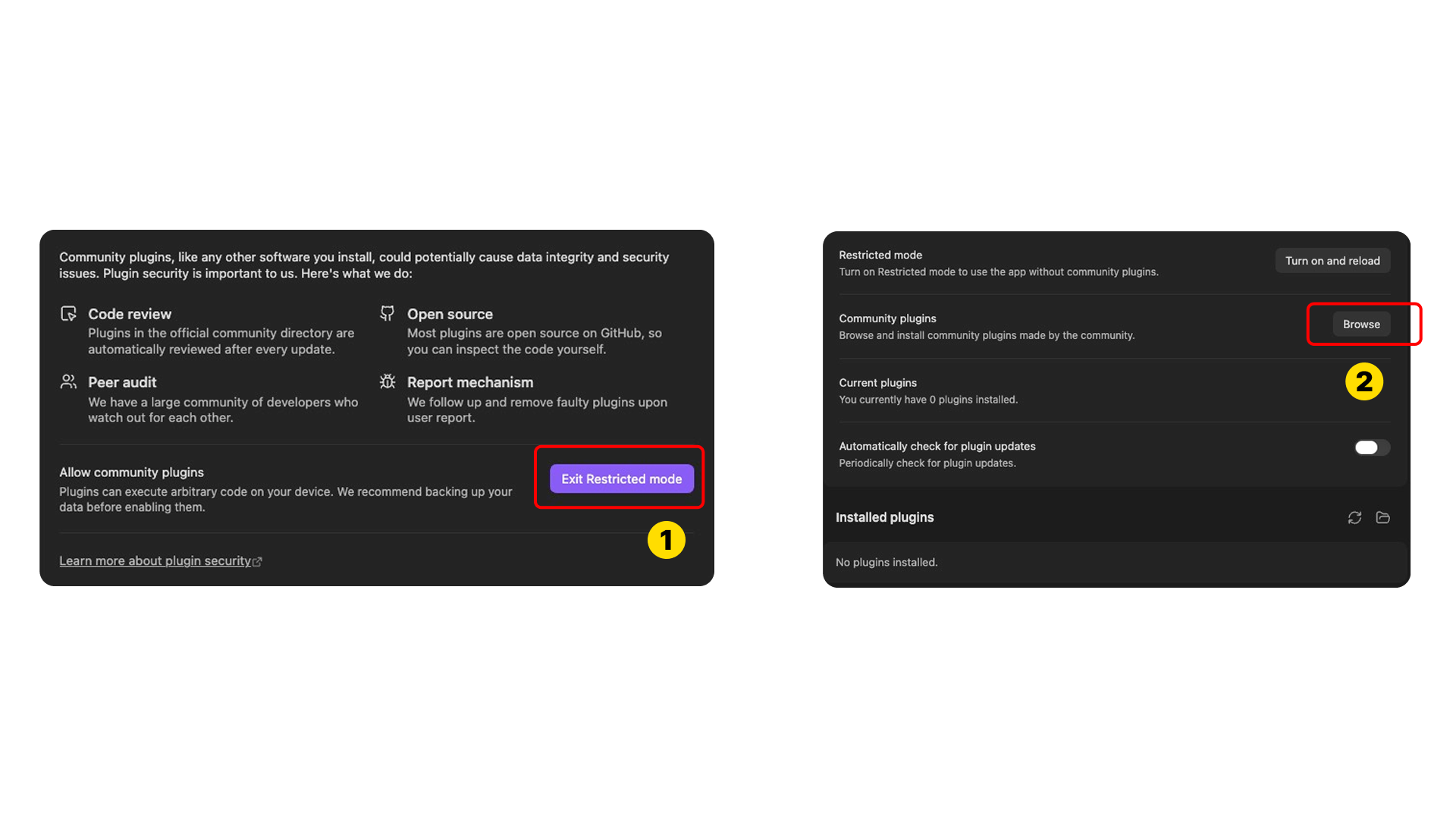
If Obsidian shows a restriction notice for third-party plugins, follow its prompt to allow them first. Then open the browser on the right side of the plugin management page.
4. Search, install, and turn on LucrJournal
Search for LucrJournal in the browser, open the result, and install it. When installation finishes, turn on LucrJournal on the same details page.
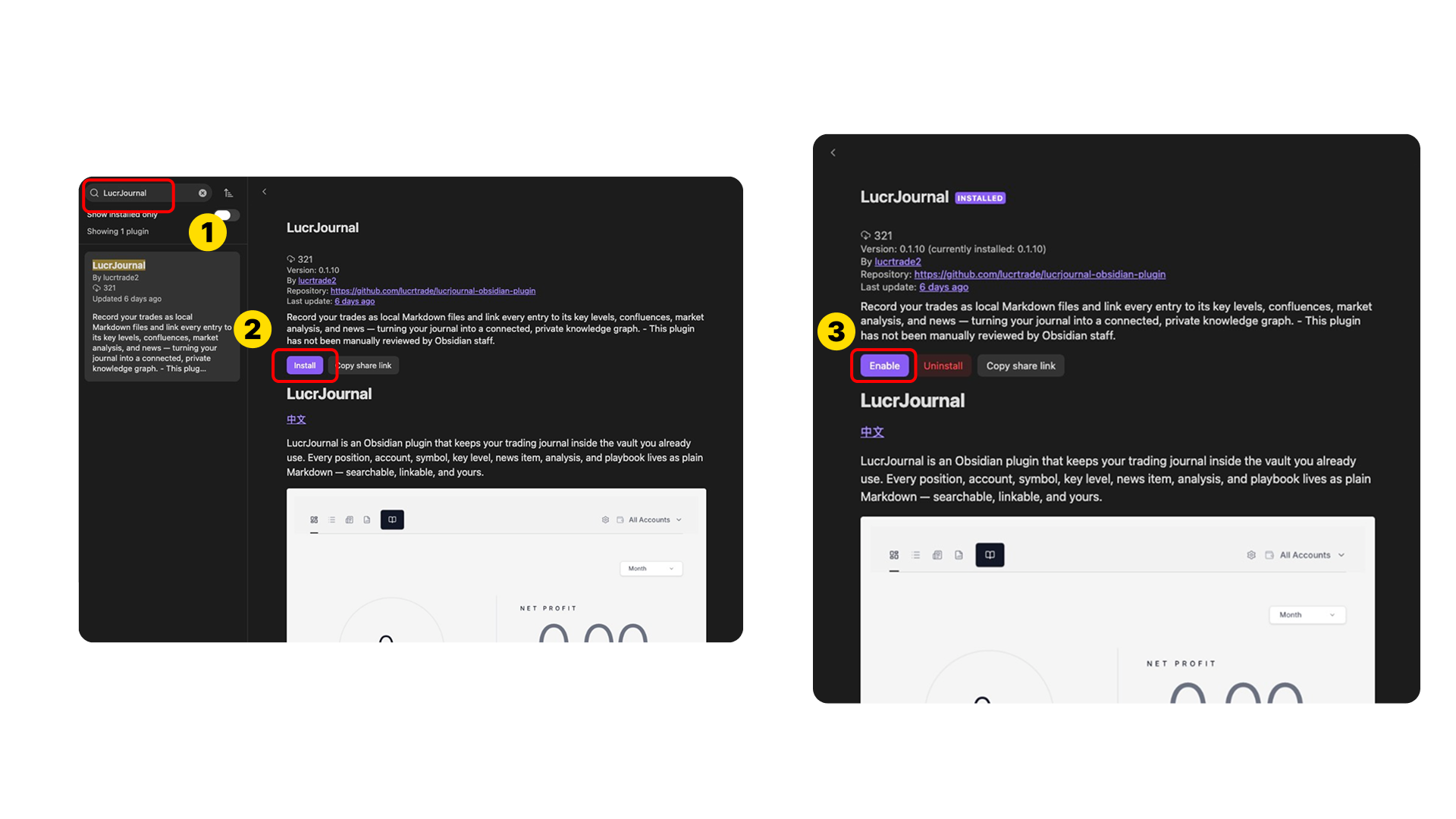
You can also open the LucrJournal plugin page directly and skip the manual browser steps.
5. Open LucrJournal for the first time
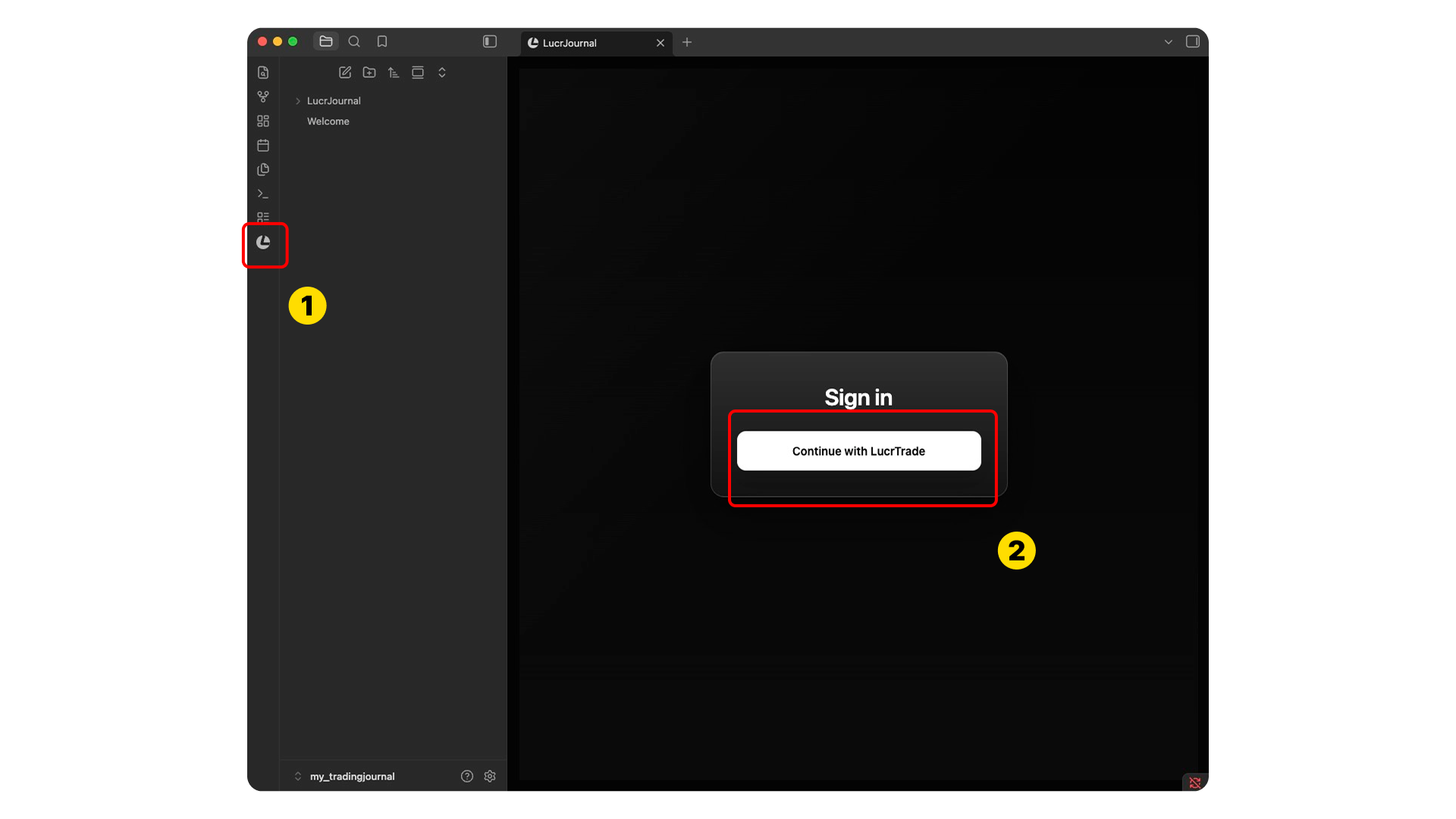
After installation, select the LucrJournal icon in the left sidebar to enter the plugin. The first launch shows the sign-in page. Select Continue with LucrTrade, then use Quickstart to sign in, check access, and create your first position.
Next step
Continue to Quickstart to sign in, check access, and create your first position.